Update an Existing Instructor
When an existing instructor or TA needs access to a new subject or campus, the Instructor/Advisor Table needs to be updated to add the employee to the list of available instructors.
BEST ACCESS: Find the Instructor/Advisor Table from Maintain Schedule of Classes using the Related Content dropdown on the top right of the screen next to "New Window | Help | Personalize Page".
Go to the Instructor/Advisor Table and Search for the employee: Search using name or WSU ID with the leading 0 (example: 099999999). If the instructor is a new employee, there will not be a record started in the Instructor/Advisor Table. Follow the instructions for how to add a new instructor.
Add a new row by selecting the "+" on the right side
Effective Date: This date must be at least 1 day after the current record and before the start of the term where access is needed. You may need to backdate this date. See The Effective Date Matters!
Status: Active
Instructor Available: Available
DO NOT select SAVE yet! Move to the Apporoved Courses tab.
A row is required for each subject and each campus that the instructor needs access to. For example, if BIOLOGY will be taught on both PULLM and ONLIN campuses, there will be two rows, one for each campus. Ensure that the Academic Organization is correct for each subject; there may be multiple choices when using the magnifying glass.
Update Acad Org, Subject Area, and Campus only. Course ID & Offer Nbr will disappear after Acad Org is updated. Select "+" to add more rows; select "-" to remove rows that are no longer needed IN YOUR DEPARMENT. Ensure that the instructor is not teaching other subjects before you remove access.
Acad Org: Add the Academic Organization Code.
BEST: View the Basic Data tab in Maintain Schedule of Classes (MSC) to find the Academic Organization Code used for the course you wish to add the instructor to.
Alternative: Use the magnifying glass to find Academic Org. Note that there may be more than once code per subject. Sort the results by selecting Subject or Description. When two codes are listed, usually the "31_XXXX" code is correct. Verify in MSC.
Subject Area: Enter the Subject code. Use the magnifying glass to view all options.
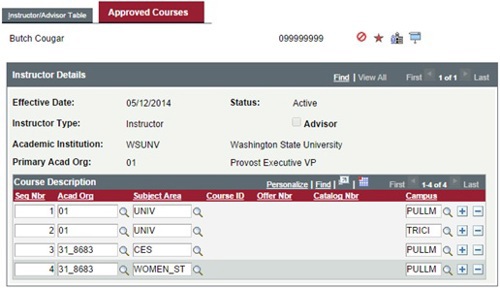
Crosslisted Courses: Each Subject in a crosslisted course must be listed in the Instructor/Advisor Table for access to the course. In the example below, CES and WOMEN_ST are crosslisted and each listed with the PULLM campus.
Campus: Enter the Campus code. Use the magnifying glass to select the correct Campus. There must be a Subject/Campus combination for each campus that the instructor needs access to.
Example: Instructor teaching UNIV at PULLM and TRICI would have two listings for UNIV. One with PULLM as campus and the other with TRICI as the campus. See example below.
Once you have double checked the Effective date and have added or deleted subject/campus for each location needed, select SAVE. Next you will add the instructor to Maintain Schedule of Classes.